
How to Change the Font of a Paragraph Style in Google Docs
Key Takeaways
- Paragraph styles in Google Docs let you customize paragraph formatting for visual and semantic benefits.
- Styles make documents maintainable and structured by allowing quick changes to all headings.
- Changing paragraph styles in Google Docs is easy with a simple process to update formatting.
It’s easy to format text in Google Docs, but mastering paragraph styles will take your word processing to the next level. Find out how to use styles and customize them to your exact requirements.
What Are Paragraph Styles?
Paragraph styles are predefined collections of formatting that you can apply to a block of text. For example, you can choose a Heading style that makes the font bold and increases the text size.
Paragraph styles are dual-purpose; they:
- Change the visual formatting of a paragraph, using properties like font family, color, and spacing.
- Add semantic value to your document by identifying roles like “Heading” and “Subtitle”.
Paragraph styles let you create more maintainable, better-structured documents. Using paragraph styles, you can—for example—change the size of all your headings with a single action, rather than changing every heading manually. You can also use them to generate a table of contents or document outline.
The concept of a paragraph style is common among word processors, although terminology varies. They may be called simply “Styles” (Microsoft Word), “Document Styles” (Canva), or “Paragraph Styles” (Pages, Google Docs).
How Do You Use Paragraph Styles in Google Docs?
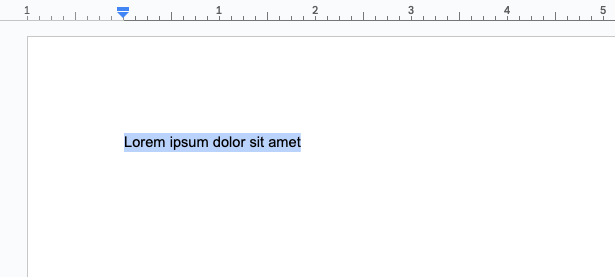
- Select the paragraph you want to change. You can select any of the text within that paragraph, or just place the cursor inside it.
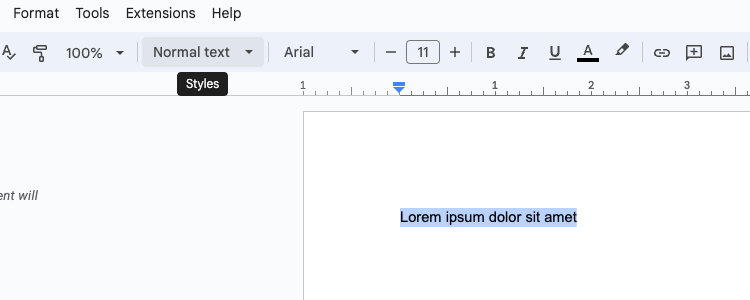
- Click on the Styles dropdown. By default, this will read “Normal text” and is located between the Zoom and Font dropdowns.
- Hover over the name of the paragraph style you wish to apply.
- This will open a submenu, from which you can click on Apply ‘<name>’. You can also just click on the initial name as a shortcut.
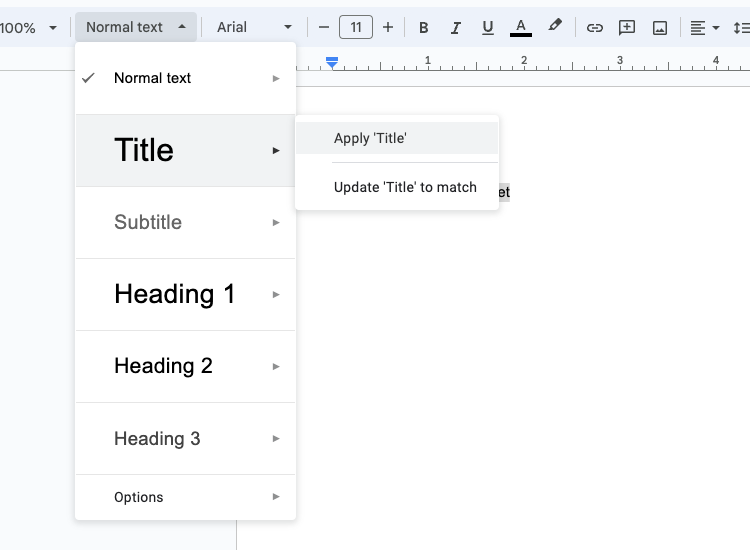


Google Docs doesn’t give you a huge selection of styles to choose from, limiting you to just a Title, Subtitle, and a few headings.
It may seem that Google Docs only gives you three headings to work with, but there are actually six in total. Once you’ve used Heading 3 in your document, Heading 4 will become available, and so on.
How Do You Change a Paragraph Style?
So what happens if you don’t like the existing look of a paragraph style? Well, you can change the formatting of each paragraph style with a simple process:
- Apply a paragraph style using the steps in the previous section.
- Change the formatting as you require. For example, click the Bold icon or change the Font.
- Click on the Styles dropdown.
- Hover over the name of the paragraph style you wish to change.
- From the submenu, select Update ‘<name>’ to match.
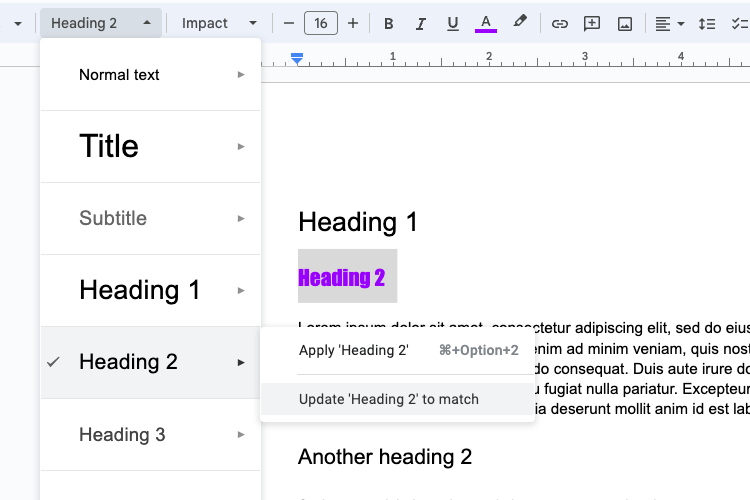
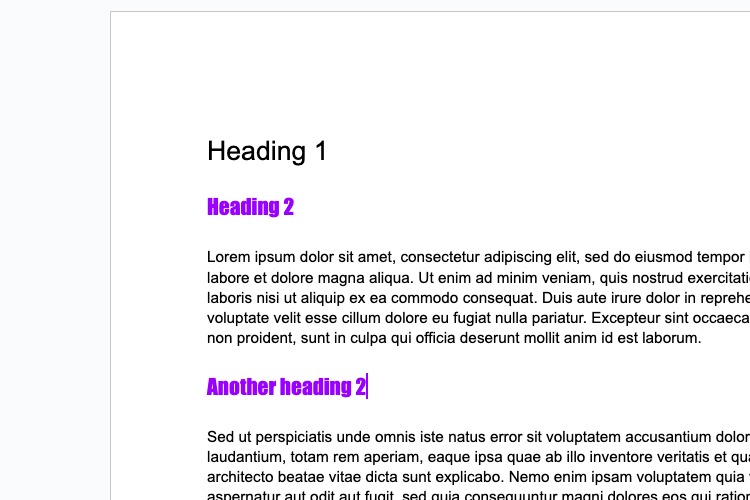
- The paragraph style will now adopt your formatting throughout the document.


Note that Google Docs shows you a preview of each paragraph style in the dropdown menu, so you’ll see your changes reflected there.
Paragraph styles are a simple feature, but once you start using them, you’ll wonder how you ever created good-looking documents without them.