

This Handy App Lets You Customize Menus in Windows Explorer
Windows 11 features a streamlined right-click context menu, but it lacks customization and can hide important options behind an extra click. If you want more control, try Nilesoft Shell, an open-source tool that allows you to personalize the context menu to your liking.
Nilesoft Shell is a context menu extender application for Windows File Explorer. It allows you to add new items or modify existing ones added by the system or third-party software. You can even create cascading and sub menus and personalize them with different themes, fonts, background colors, and opacity.
Installing Nilesoft Shell
You can download the installer directly from the Nilesoft website. Once downloaded, double-click the installer and wait for the installation to complete.
If that doesn’t work, you can install Nilesoft Shell using a package manager like Winget, Chocolatey, or Scoop. Open Windows Terminal, and type the following command, then press Enter:
winget install nilesoft.shell To run the app:
- Search for Nilesoft Shell in Windows search.
- Right-click on the app and choose “Run as administrator.”
- Alternatively, press and hold Shift and right-click on the Taskbar, then go to Shell > Manager.
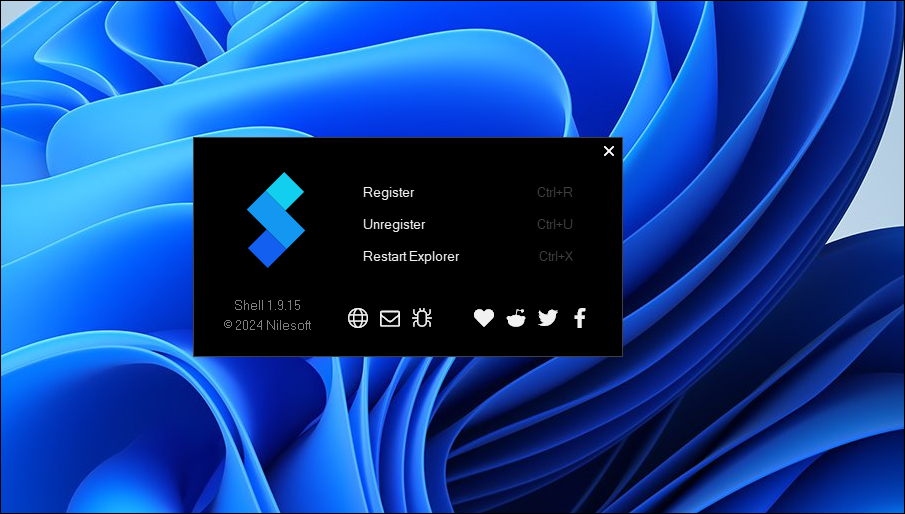
- In the GUI dialog, click “Register” to activate the software. Your screen may flash a few times as Windows Explorer restarts.
With the integration complete, Nilesoft Shell will display a new context menu when you right-click in File Explorer. This menu includes existing, hidden, and some additional options.

While Shell works great by default, you can customize it with new items and themes to meet your needs. To understand how Shell works and how to customize the context menu with additional options, check Nilesoft’s documentation page.
Shell uses its own configuration files to define the context menu. You can modify the shell.nss or modify.nss file to add or remove items.
As an example, we’ll remove the WinRAR option added by the software during installation. Press and hold Shift, right-click on the Taskbar, and go to Shell > directory. Open the Imports folder and double-click to open the modify.nss file in Notepad.

Now add the following line of code to the Notepad file:
remove(find="winrar") 
In the above command, winrar is the identifier and is case-sensitive. Replace Winrar with the option that you want to remove. For example, to remove the Open With option from the context menu, add the following line of code to the file:
Remove(find="open with") To remove multiple items, add all the identifiers separated by a separator (|). To remove view, sort by, refresh, and paste options from the context menu, type:
Remove(find="view|sort by|refresh|paste") Now, let’s try to add an item. To add a Google Chrome shortcut to the context menu, add the following command to the modify.nss file:
item(title='Google Chrome' cmd='chrome.exe' image=icon.chrome) 
Once done, press Ctrl + S to save the changes. Then press Ctrl + right-click on the desktop area to force Shell to reload the nss files. Right-click on any item in the File Explore to view the new menu item. If no changes are applied, check if the identifier name is correct.
You can also add a software shortcut to the context menu using the registry editor, but it’s more complicated and risky.
You can further customize the appearance of the context menu by changing the background color, opacity, font size, and other properties to suit your needs. Open the Imports folder, then double-click to open the themes.nss file. To change the font size, modify the following line:
Font.size=20 You can change 20 with the font size of your preference.
Next, set a different font by adding the following line:
Font.name="Lora" 
You can replace Lora with your preferred font name. To undo the changes, remove the command or set the font size to auto.
Advanced Customization
By default, Nilesoft Shell adapts to the default system theme for the context menu. You can personalize it by modifying the theme.nss file or installing third-party themes such as Catppuccin for Nilesoft Shell. You can change the theme, background color, opacity, and effects, either to the default or a third-party theme.
To apply a dark theme, change the syntax from “dark” to “white.” Replace it with “modern” or “classic” to restore the default style:
theme
{
Name= "dark"
To adjust the background color to orange, set the Color identifier to #F8C471. Set Opacity between 70 and 30 for a more transparent appearance. Additionally, set the Effect directive to 1 for transparent, 2 for blurred, or 3 for an acrylic effect. You may need to adjust the opacity level for these changes to be noticeable:
background
{
color =
opacity = 70
effect = "1"

Save the file and reload the nss file to view the changes.
Remember that the changes might not take effect immediately, and a restart might be required. Also, don’t forget to create a backup of the modified nss file. My multiple attempts at modifying the configuration app caused it to stop working, requiring a reinstall. Having a backup can help you quickly restore your changes and avoid losing them due to a bug.
Catppuccin for Nilesoft Shell brings the famous community-driven soft, pastel aesthetics to your context menu. To use the theme:
- Go to the Catppuccin Nilesoft Shell GitHub page.
- Select your preferred theme flavor on the theme page—frappe, latte, macchiato, or mocha.
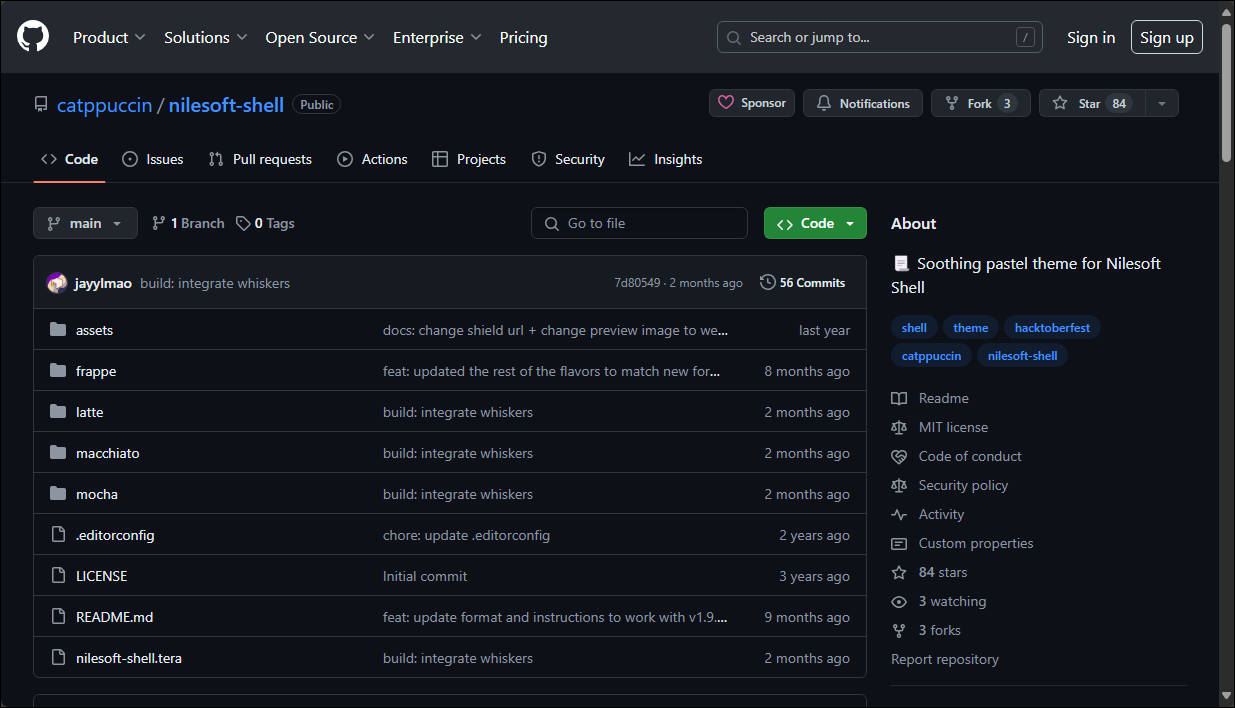
- Pick a color and click the download button (down arrow icon).
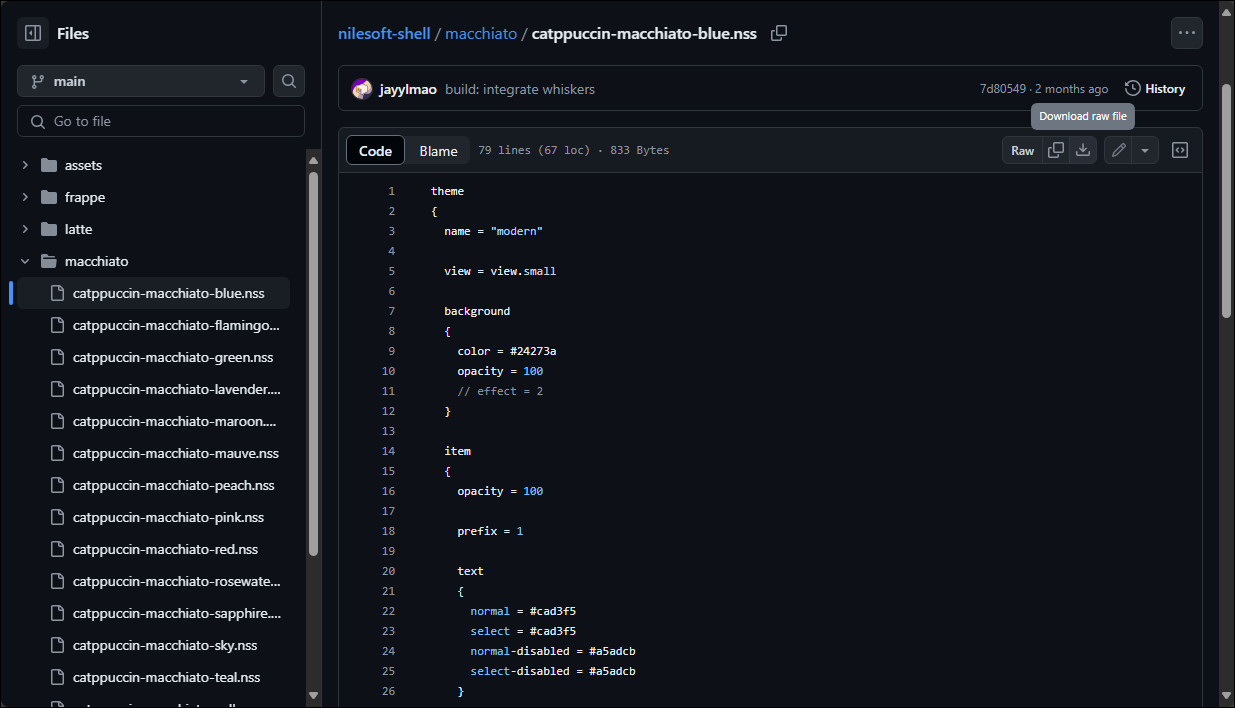
- Next, head to the imports folder and back up the theme.nss file.
- Once done, rename the downloaded file to theme.nss and move it to the imports folder.
- When asked to confirm, choose Replace the file in the destination.
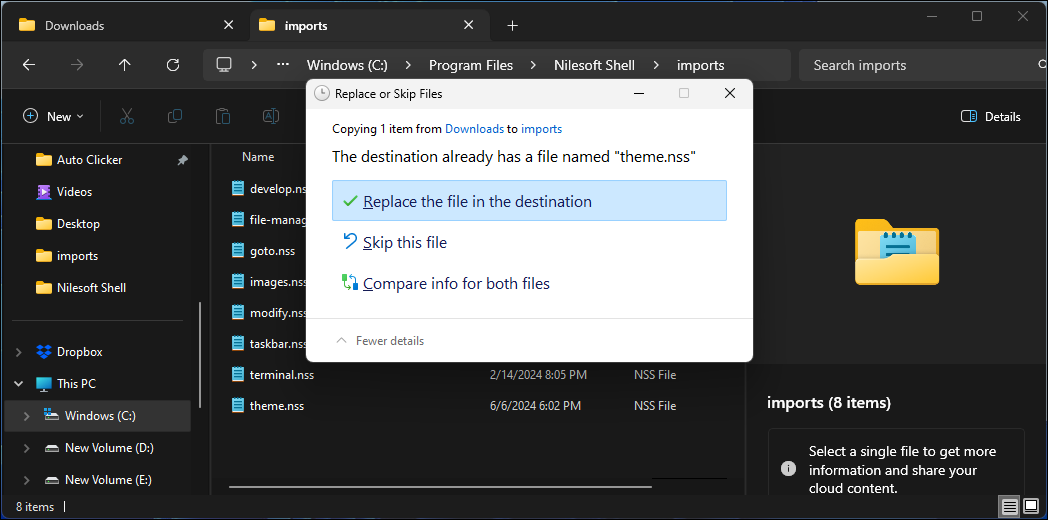
- Press Ctrl + right-click on the desktop area to reload the nss files.
- Right-click again to view the context menu with the new theme applied.


If you decide to restore the default Nilesoft Shell theme for any reason, move the theme.nss backup file to the imports folder, and you are done. On the other hand, if you want to restore the default Windows right-click menu, you can unregister Nilesoft Shell. Launch the Nilesoft Shell manager as an administrator and click Unregister.

Shell is a free and powerful context menu customizer that fixes the apparent annoyance with the default Windows 11 context menu. You can further customize it with Catppuccin themes and add or remove items to extend the right-click menu functionality in File Explorer, desktop, and Taskbar.