
This Is My Favorite Mobile Photo Editing App, and It’s Not Even Close
Key Takeaways
- Picsart is free with paid subscription features that offer great value for the price.
- The app offers advanced editing tools like Clone and Stretch, as well as handy features like layers.
- Explore the Magic Effects, Stickers, Draw, and AI tools for creative photo editing.
When it comes to mobile photo editing, Picsart leaves other apps in the dust with its easy-to-use interface, endless features, and AI integration. Let’s dive in and see why you absolutely need this powerhouse on your smartphone.
Is Picsart Free?
Yes, you can use Picsart for free. While some of the features are locked behind a subscription, namely Picsart Gold, the free version still packs a punch.
The mobile subscription is refreshingly simple—just choose between the monthly or yearly plan, and you get access to all the features, plus no more ads. And it comes at a fair price if you ask me; the monthly plan is $12.99 and the annual plan is $57.
Download: Picsart for iOS | Android (Free, in-app purchases available)
Getting Started With Picsart
From the home screen, tap the big plus sign at the bottom and select an image from your camera roll. In the editing window, you’ll find all the standard editing tools in Tools—such as cropping, light and color adjustments, and rotating. But that’s not what we’re here for, you can easily do that stuff on Apple Photos.
Instead, take a look at the more advanced tools. You might be familiar with Clone from Photoshop, which is great for fixing minor issues. Stretch is another cool feature that lets you warp any part of the image. And Tilt Shift does exactly what a perspective control lens does, without the need for the lens.
Picsart’s basic editing tools alone can completely transform your images. Another very useful feature is layers, which is not very common in mobile editing apps. Picsart automatically creates layers for every effect you apply, and you can hide, lock, and customize them however you see fit.
Features You Need to Try
Take a scroll through the tools at the bottom. Each one of them packs something handy, and many aren’t anything new, but there are some gems that give Picsart an edge over other apps.
Magic Effects
The Effects section houses a wide variety of filters grouped into different types—my favorite is Magic. The menu consists of over 30 filters that add artistic flair to your photos, and many are perfect for cartoonifying your portraits.
As with any effect on Picsart, tap on it a second time to open the customization options. Here, I applied the Galaxy filter and turned down its opacity with the Fade slider—I love the way it turned out.
Sticker
The Stickers option expands Picsart’s capabilities beyond photo editing into graphic design, it functions very similarly to Elements in Canva. Here, you can find pretty much any element you can imagine—cartoon characters, shapes, overlays, accessories, you name it.
Once you’ve selected a sticker, you can customize it however you want with the tools from the editing page. Control the size, opacity, blend mode, and even add other effects to the sticker. You can also use the Eraser tool to create a custom mask of the sticker.
Draw
The Draw tool turns Picsart into a mobile alternative for Procreate of sorts, offering a plethora of creative options beyond simple brush and color selections. I’ve tried all of them, and my favorite brushes are the paint drip and stars.
The Fill option is also very cool as it lets you apply a pattern over your image. But I had the most fun with Smudge—instead of brushing color over your image, it lets you “smudge” the pixels into various shapes.
The AI Features
Picsart has been integrating AI into the app for a while now—it’s called “Picsart AI Photo and Video Editor” after all. So forget about other photo editing or AI art apps, you can do it all in Picsart.
You’ll come across AI features all throughout the app, from the home screen to the editing window, and even within the customization options of manual effects.
Here, I tried out the Text to Image generator. Then I used the Smart Background feature to remove the background of the same image and replaced it with a new AI-generated background. While at it, I also tried AI Replace and AI Expand. I’m impressed with it all, the results are very high quality.
Even if you’re not in the market for a photo editor, Picsart’s AI features alone make it worth a spin.
Edit Your Photos With Templates
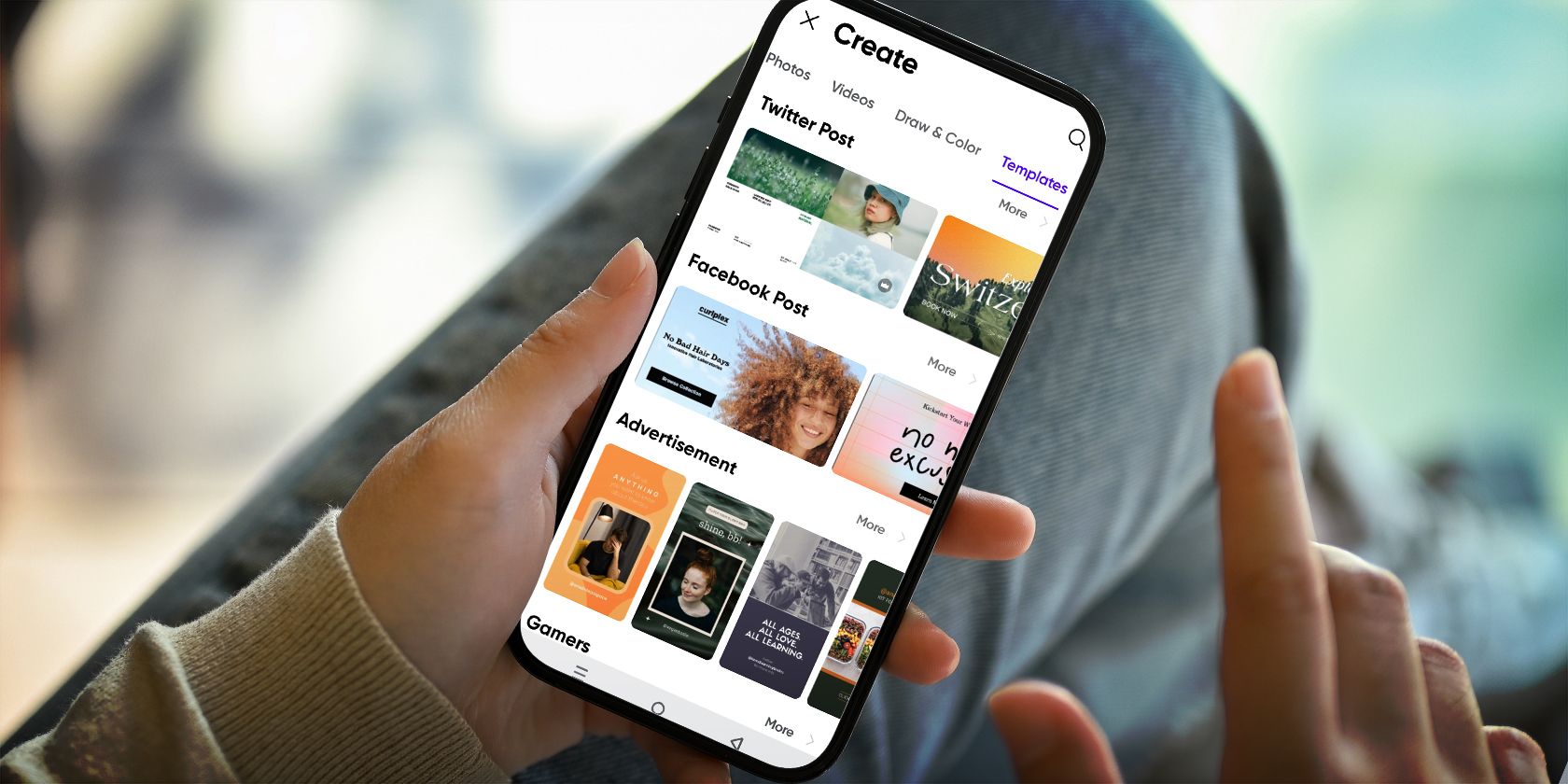
Upon opening the app, you’ll be greeted with a ton of templates created by Picsart users. Scroll through the options in the top panel and look at all the templates. Hit Try if you want to use one, and choose an image from your camera roll.
The reason why I love templates is that they’re customizable. Picsart will take you through every step of the creator’s process, and you can choose to apply, skip, or tweak it. Free users can still use templates that include paid features, you’ll just have to skip those steps.
Picsart isn’t your average photo editor—it can also be your go-to for AI art, digital drawing, and graphic design. And did I mention that you can also edit videos with it? In my experience, the subscription is worth the cost, but if you’re not going to use the app that often, you’ll be more than happy with the free version. Either way, Picsart is a must-have for anyone looking to get creative.